Visitors

free counters
Showing posts with label cloud. Show all posts

Friday, February 15, 2013

Which cloud storage service is best: Google Drive, Dropbox, or SkyDrive?


It's raining cloud services.
The problem: You have lots of files that you need to access from multiple places, and you don't want to rely on a USB stick or emailing yourself. The preferred solution, for years, has been Dropbox, the free cloud-storage service for seamless file syncing. But now, Dropbox has competition from a couple young upstarts named Google and Microsoft. Let's see how Dropbox, Google Drive, and Microsoft's SkyDrive stack up against each other.
Each of the three services puts a folder on your computer that you can drop files into, which in turn automatically syncs with the appropriate service's cloud-based online storage. Each service offers a variety of mobile apps for accessing your files on the go, and the ability to access and share files from the web. From that point of view, they would seem to be the same, but the differences in implementation are significant.
Dropbox, Google Drive, and SkyDrive compared

Dropbox

Dropbox is the service with which you may be most familiar. It's not the oldest (SkyDrive is), but it was the first to popularize this particular method of syncing files. When you install Dropbox on your computer, it creates a Dropbox folder with two gigabytes of free cloud storage. Files and folders you drag into the Dropbox folder are automatically uploaded to the Dropbox servers, but remain present on your computer, too. If you connect other computers to your Dropbox account, your files automatically sync with them as well.
If two gigabytes won't cut it, Dropbox offers paid options: You can spend $10 per month (or $99 per year) for 50GB, or $20 per month ($199 per year) for 100GB. If you get someone else to sign up for Dropbox with your referral link, you will both get an extra 500MB of free space.
Dropbox on the web
Recent updates to Dropbox made uploading and sharing files even simpler. You can drag files directly onto the Dropbox website in your browser of choice to upload them to the service, and new sharing options make it delightfully simple to right-click (on a Mac, Control-click) on a Dropbox-stored file on your computer to expose instant and immediate public sharing options.
On your Mac or PC, Dropbox will superimpose tiny symbols atop your file icons indicating their sync status. That lets you know whether files are fully backed up to Dropbox, or still in the process of syncing.
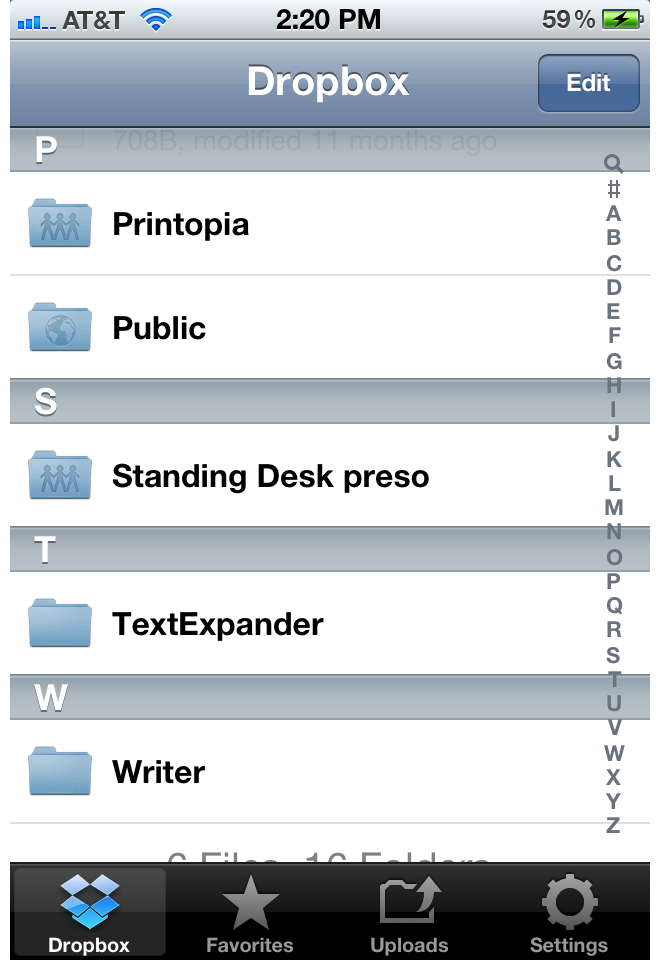
Dropbox on iOS
Like its competitors, Dropbox also offers free mobile apps so that you can access your files on the go—from an iPhone, iPad, Android device, or Blackberry. The mobile apps, in addition to offering access to all your Dropbox-hosted files, also offer the option to cache certain files locally on your device; that way, if you're going to be stuck on a Wi-Fi-less flight, you can still gain access to your big presentation. While Dropbox's mobile apps aren't beautiful, they work well.
Oodles of third-party apps offer built-in Dropbox integration, too—you'd be hard-pressed to find a text editor for iPad that doesn't, for example. That's a distinct leg up over the other two services; Google Drive and SkyDrive don't have anywhere near that level of integration.
Check out our hands-on with the new Dropbox sharing features.

SkyDrive

To use Microsoft's SkyDrive, you'll need a Windows Live or Hotmail account. If you use any of Microsoft's online services, including Xbox Live, you probably already have one. The SkyDrive app behaves an awful lot like Dropbox: It creates a custom folder on your Mac or PC that behaves just like a regular folder; drag other files into that folder, and they'll start syncing to SkyDrive automatically.
Microsoft offers seven gigabytes of storage with SkyDrive. For more space, you can spend $10 per year for 27GB, $25 per year for 57GB, or $50 per year for 107GB. Those prices are considerably more affordable than Dropbox's rates. For a limited time, old SkyDrive users can get a free upgrade to 25GB.
While it offers more (and more affordable) storage, SkyDrive can't quite compete with Dropbox's feature set. There's no option, for example, to right- or Control-click on SkyDrive-stored files on your desktop to generate quick sharing links. On the Web, however, SkyDrive's sharing options are excellent: You can quickly get a link to share your file; share it with the ability for the other user(s) to edit; post a link directly to Facebook, LinkedIn, or Twitter; and more.
Skydrive's Mac options are a joke.
Other limitations with SkyDrive right now include its very limited preferences: Where Dropbox lets you enable options like Selective Sync (where certain files and directories only sync to certain computers), on-screen notifications (about which files get updated when), and bandwidth usage settings, SkyDrive's preferences are almost comically limited. On the Mac, you get an option to automate the sending of usage data to Microsoft (off by default) along with an Open at login option; on Windows, you get the latter option, plus a second setting to "Make Files on This PC Available On My Other Devices."
Skydrive on iOS
On Windows, SkyDrive offers Dropbox-style icon overlays to show you whether your files are fully backed up or not. That doesn't happen on the Mac. Another Mac limitation: The SkyDrive app must sit in your Dock at all times; quit it, and your files silently stop syncing.
The SkyDrive mobile apps are very good, and available for Android, iOS, and Windows Phone 7. They look good and work well, offering quick access to recently updated files, documents shared with you, and everything you've synced to the drive. Again, as referenced earlier, few third-party apps integrate with SkyDrive; that may well change as SkyDrive's popularity increases.

Google Drive

Google Drive requires, unsurprisingly enough, a Google account. In typical Google fashion, access to the service is getting rolled out slowly: You'll see a note about whether Google Drive is enabled for your account or not on the Google Drive webpage, and you can't download or install the software until your account becomes eligible.
Like Dropbox and SkyDrive, installing Google Drive on your computer creates a special Google Drive folder; files you drop in there sync automatically to the cloud. Google Drive also uses tiny indicators atop your icons to indicate whether files are still syncing or fully backed up onto Google's servers—and those indicators appear on both Windows and the Mac, unlike SkyDrive's.
You get five gigabytes of storage with Google Drive. That's more than Dropbox, less than SkyDrive. You can upgrade to 25GB of storage for $2.49 per month, 100GB for $4.99 per month, with tiered pricing up through 16TB—that's 16,384 gigabytes—for $800 per month. SkyDrive's pricing is slightly better for the normal-sized options; Google Drive is the only option for folks needing 16TB of cloud storage.
The Google Drive web interface is almost exactly like Google Docs.
Like SkyDrive, Google Drive lacks Dropbox's contextual menu options on your desktop for getting quick links to share your files. Google Drive's Web interface—which bears a significant resemblance to Google Docs—does offer various sharing options, including the ability to make a file public, share it with specific people, or share it with specific people along with giving them the ability to edit your files. As with both SkyDrive and Dropbox, you can drag files directly onto Google Drive within your browser of choice to upload them that way.
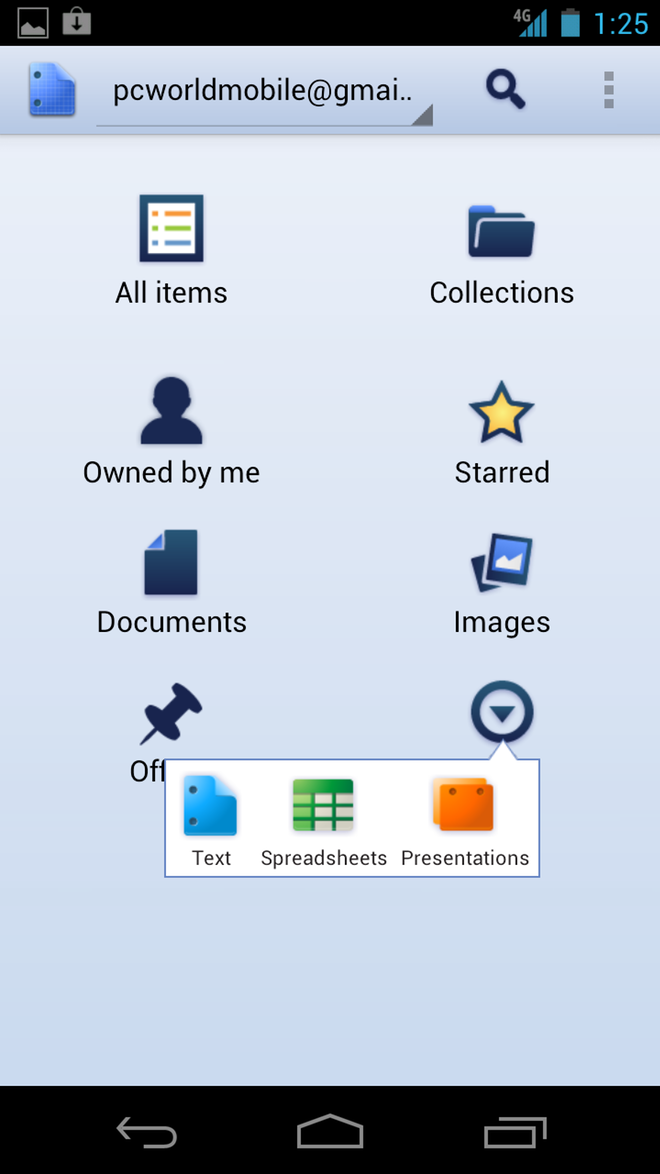
Google Drive on Android
There's a Google Drive Android app, but an iOS app is listed only as "coming soon", and there's no word on Windows Phone 7. Google told All Things D that the iOS app "is 98 percent done, and it will be here soon."
Like Dropbox, Google Drive allows you to choose files and folders to sync selectively. If one of your computers needs access to Presentations, but another doesn't, you can deselect that folder on the second computer, without removing Presentations from your Google Drive completely.
Google Drive also syncs hard copies of your Google Docs documents to your desktop—sort of. You'll see files, which you can in turn double-click, but doing so simply launches your default Web browser pointed to the proper URLs.
The Android app is straightforward to use, offering options similar to the comparable apps from its competitors. One clever option unique to the Google Drive app is the ability to create a new word processing document or spreadsheet within the app.

Privacy

There's been some talk on the Web about the services and their different terms of service and privacy policies.
Microsoft, for example, says it will remove you from the SkyDrive service if you use it to "share content ... in a way that infringes others' copyrights." Google says that in can, in theory, use your Google Drive data in various ways, including the options to "reproduce, modify, create derivative works ... publish, publicly perform, publicly display and distribute such content ... for the limited purposes of operating, promoting, and improving our Services." But, as the aforelinked Verge story points out, that's not meant to give Google permission to look through your private files and share them with the world; that's explicitly disallowed by the company's privacy policy.
All three services make it clear that you maintain ownership of your data that you store with them. You'll need to decide for yourself whether you trust Microsoft, Google, or Dropbox with your data.

Which to choose

If you're wondering which cloud-storage service is right for you, consider that you may in fact be asking the wrong question: These services are all free, with charges only for extra storage space. You needn't choose just one; you can install all three services on your computer, download the apps, and use them for different purposes.
Files you expect to need to share frequently may be best suited to Dropbox for the time being, since it allows you to easily share documents from your desktop. It may also be the best choice if you want to access the data from within mobile apps, since more apps support Dropbox integration. If you want to access your files on an iOS device, don't store them on your Google Drive until an iOS client is released. SkyDrive seems to be better-integrated with Windows than with the Mac, for now.
Each service is easy to set up and configure, each has some advantages, and they work fine in tandem. Try them all, and let us know which one you prefer in the comments.

Thursday, February 14, 2013

How to set up iCloud


If you recently picked up a new Mac, iPhone, iPod, or iPad, you may have seen mention of something called iCloud when setting up your device. If you don't already know, iCloud is a free syncing and backup service from Apple that aims to keep all of your devices—mobile devices running iOS 5 or later and desktop computers running OS X Lion or later, or Windows Vista or later—on the same page, with the same data, no matter which one you’re using at any given moment.
We’ve written before about what you get with your iCloud account. But what if you’re unsure about how to set up iCloud in the first place and how to get it to work on your Mac, PC, iOS device, and Apple TV? We'll show you.

Sign up for an iCloud account

A few notes before we begin: Although signing up for iCloud is free, you can’t do so just anywhere. You must create an account on either a mobile device running iOS 5 or later or a Mac running OS X 10.7.5 or later. Unfortunately, Windows users have to create an account on one of these platforms before they can log in from a PC.
Apple also limits you to creating ten iCloud accounts per device. You should ever need only one or two, so you’ll probably never run up against the limit; because the limit persists after full device wipes, however, you may see a warning about it if you’ve received an older iOS device or Mac. If you do get an alert preventing you from making a new iCloud account, I suggest going to your nearest Apple Store, where they should be able to help you sort it out.

Do you have an Apple ID?

If you’ve ever purchased anything from the iTunes Store, App Store, or iBookstore, you have an Apple ID. (It's probably the email address you used to sign up for iTunes.) If you’ve logged in to the iTunes or App Store apps with this Apple ID, you should see the email address already filled out in the Apple ID section of the iCloud screen.
All iCloud accounts stem from Apple IDs, so it’s easy to convert your current Apple ID into an iCloud account. You’ll still be able to use your Apple ID for everything you currently use it for, but you’ll also get all of iCloud’s features. And if you have family members who use this Apple ID, they’ll still be able to use it for purchases without getting all of your iCloud information. (For more on managing multiple Apple IDs and iCloud, see our explanation about common signup scenarios.)
NEW MAIL If you want to add an iCloud email address to your old Apple ID, just turn on the Mail switch (or check the checkbox on your Mac) in your iCloud preference pane.
To convert your Apple ID into an iCloud account, open the iCloud preference screen on your iOS device or Mac, and then sign in to iCloud with your current Apple ID and password. The screen will prompt you to agree to the iCloud terms and conditions; once you do, you’re ready to begin using the service.
Note: If you do convert an Apple ID into an iCloud account, you won’t get an iCloud email address (@icloud.com) by default. If you want one, simply go to Settings > iCloud on an iOS device and toggle the Mail switch on (or, on a Mac, click the checkbox). You’ll then see a prompt to create an iCloud email address to go along with your account.

Starting from scratch

Never used iTunes before? On an iOS device, go ahead and tap the Get a Free Apple ID button at the bottom of the iCloud settings screen. (On a Mac, click Create an Apple ID.) The screens will request your birthdate and name, and ask whether you’d like to use a current email address or create an iCloud.com email address for your Apple ID. Even if you elect to use your old email address, you can create a new iCloud.com address after making your account by going to Settings > iCloud and turning on the Mail switch.
STARTER KIT You can use a current email address or create a new one for your Apple ID.
From there, you’ll either have to enter your current email address or type what you want your new iCloud email address to be. The service also prompts you for a password for your account and a security question.
After that, to finish up, simply indicate whether you want to get email updates from Apple, and then agree to the terms and conditions. You’re ready to start using iCloud.

Set up an iOS device

Originally iCloud was introduced as a sync mechanism for iOS devices, and consequently the iCloud signup process is most straightforward on your iPhone, iPad, or iPod. You need a device running iOS 5 or later; if your iPhone or iPod is still running iOS 4, you can't get in on the iCloud action until you upgrade.
When you first set up your device, you should have seen a screen asking you to sign in or sign up for an Apple ID and iCloud; even if you chose not to set that up when you first unboxed the gadget, getting an account is simple.
On your device, open the Settings app and tap the iCloud entry. You’ll see a space for logging in with an Apple ID and password, and a Get a Free Apple ID button at the bottom.
Once you’ve set up iCloud on your iOS device, most of it starts working automatically: It syncs your email (if you've set that up), along with any previously created contacts, calendars, reminders, notes, Passbook passes (iPhone-only), and Safari bookmarks, to its central online server. Photo Stream, too, starts automatically uploading the last 1000 photos you’ve taken. All iCloud options are on by default; if you want iCloud not to sync a specific item type, just tap the appropriate toggle to turn it off.
FULL BOAT On iOS, you have access to almost all iCloud features.
You can also start creating backups of your iOS devices by going to Settings > iCloud > Storage and Backup > Back Up Now.

Set up a Mac

The Mac setup process is very similar to that of an iPad, iPhone, or iPod: You use the iCloud settings pane in System Preferences. To add or create an iCloud account, your computer needs to be running OS X 10.7.5; any earlier, and you won’t have that pane. (Thomas Brand’s Egg Freckles blog has a few suggestions for using parts of iCloud on older systems.)
iCLOUDY GATES The iCloud preference pane on a Mac lets you sign in with your Apple ID or create one on the spot.
As on an iOS device, once you’ve set up iCloud on your Mac, it syncs your email (if you have set that up), contacts, calendars, and so on. All options are on by default except for 'Back to My Mac', which you must turn on manually; again, if you want iCloud not to sync specific data, just click the respective toggle to turn it off.
CHECKBOXES, CHECKBOXES Don’t want to enable certain iCloud features? Just uncheck those checkboxes.
Unlike with iOS devices, you can’t create iCloud backups of your Mac—in part because said backups would likely eat up all your iCloud storage space, given the size of most Mac hard drives. But your Mac does offer support for iCloud’s data sync, allowing iCloud-compatible programs to store their documents and data there.

Set up a PC

In contrast to iOS devices and Macs, a Windows PC doesn’t come with any kind of iCloud control panel preinstalled; you first have to download it from Apple’s website. And, as noted above, your PC is also the only device you can’t use to create an iCloud account, so you’ll need to have first made one on your Mac or iOS device.
When you sign in to the control panel for the first time, it asks whether you want to send diagnostic and usage information to Apple; accepting this arrangement allows the company to automatically (and anonymously) collect data on any crashes you might have related to iCloud, and to send that data back to its central servers to prevent similar crashes from happening in the future.
SIMPLE SYNC You don’t get as many options for syncing iCloud information on Windows as you do on the Mac or on iOS.
Your sync options for iCloud on the PC are limited in comparison to those on iOS devices and the Mac: You can sync email (if you’ve created an iCloud.com account); contacts, calendars, and tasks in Outlook; Web browser bookmarks; and your Photo Stream. Unfortunately, the Windows operating system doesn’t support syncing reminders, notes, iCloud data, or PC versions of Back to My Mac or Find My Mac.
If you need to make a change to your reminders and notes (or if you just want to see them), you can still access them online via iCloud.com.

Set up an Apple TV

Although your Apple TV doesn’t have access to iCloud’s calendars, reminders, notes, or mail, you can still access iCloud features such as Photo Stream and iTunes Match when you log in with the Apple ID tied to your iCloud account. To do so, go to theSettings screen of your Apple TV, click iTunes Store, and enter your account information.

Wednesday, February 13, 2013

Look, no wires! Intel demos wireless docking for Ultrabook


Intel demonstrated a new technology on Thursday that promises to rid computers of many of the connectors and cables that are needed today to connect to a myriad of peripherals and other devices.
Called WiGig, the technology has been under development since 2009 and aims to replace cables by using a high-bandwidth, high-frequency wireless data system.
"Since inception of the WiGig alliance back in 2009, we always had the vision that we need to develop a very high-throughput wireless technology that is capable of doing things beyond what Wi-Fi can do," said Ali Sadri, president of WiGig Alliance and director of millimeter wave technology at Intel.
Sadri was speaking during a keynote address at Intel's Developer Forum in San Francisco and gave examples of video connections to monitors and TVs, PCI Express and SDIO as some of the interfaces WiGig could replace.
WiGig runs on spectrum in the 60GHz band -- frequencies considerably higher than today's Wi-Fi and suitable for short-range communications but highly susceptible to interference or blocking over longer ranges.
During the demonstration the technology initially failed to work, a problem blamed on the demo laptop going to sleep while it was sitting on stage waiting to be used. (See the demonstration, and failure, in this YouTube video.)
When it did eventually work, Sadri demonstrated a WiGig link between a hard-disk, laptop computer and two monitors. The laptop, which was running on battery power so it had no wires attached, was streaming video from the hard disk and displaying it on the computer desktop, which was being displayed across two monitors.
The demonstration was impressive but WiGig isn't the first standard that's promised to rid the world of cables. Previous technologies have failed to catch on or come to market and WiGig was originally promised in 2010 but failed to materialize.
Now the technology, backed by Intel and a number of other big names in the computer industry, is "very close to reality," said Sadri.
A certification program for WiGig gear is expected to begin in the middle of 2013 with products following later in the year, he said.
Earlier in July the technology received a boost when Marvell Technology Group, a major manufacturer of Wi-Fi chipsets, said it plans to offer chips with WiGig support. Another chip maker, Atheros, had earlier said it plans similar chips.
Martyn Williams covers mobile telecoms, Silicon Valley and general technology breaking news for The IDG News Service. Follow Martyn on Twitter at @martyn_williams. Martyn's e-mail address is martyn_williams@idg.com

Sunday, February 10, 2013

Top Cloud Services: The Great Hard Drive in the Sky


Cloud-based services offer extra storage space, and many allow you to sync files across multiple devices. But that's not all: Some can help you collaborate on projects, back up your PC, share photos, and stream music, too. We rounded up 20 cloud offerings across multiple categories, comparing their features, storage limits, and pricing.
To read the story about each category of cloud services, click the appropriate heading below, or use the contents box to the right.

File Sharing and Syncing

SugarSync
With the assistance of cloud services, you can edit your documents on any Internet-connected device, and keep them up-to-date. We looked at Box, Dropbox, MediaFire, SkyDrive, and SugarSync.

Collaboration

Office 365
Looking to work with other people on shared project files? Google Drive, Office 365, and Zoho promise to help. We tried all three services.

Sending Large Files

Email attachment limits can be frustrating when you need to give colleagues large documents. We looked at RapidShare, Sendspace, and YouSendIt to determine which file-sending service is best.

Online Backup

Backing up your valuable files is a necessary chore, but cloud services such as Carbonite, CrashPlan, and Mozy can make the process fairly painless.

Storing and Sharing Photos

SmugMug
If you're an avid photographer, Flickr, Photobucket, and SmugMug can help you showcase your shots. You might even be able to make a little money from your photos.

Storing and Streaming Music

Want to bring your music collection with you? Through Amazon Cloud Player, Apple iCloud, or Google Play, you can enjoy tunes almost anywhere.

Twitter Delicious Facebook Digg Stumbleupon Favorites More

 
Design by Free WordPress Themes | Bloggerized by Lasantha - Premium Blogger Themes | Top WordPress Themes